Custom Order Management
Create and manage orders even when a product isn’t available in your inventory.
Step-by-Step Guide:
1. Navigate to the Custom Order Module
- Log in to your FullStro account.
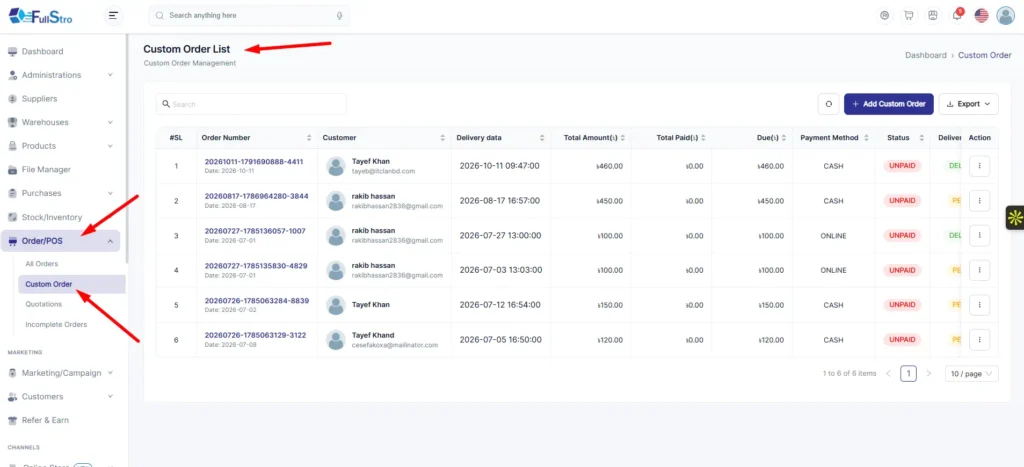
- From the left sidebar, navigate to Order/POS > Custom Order.
Add a New Custom Order
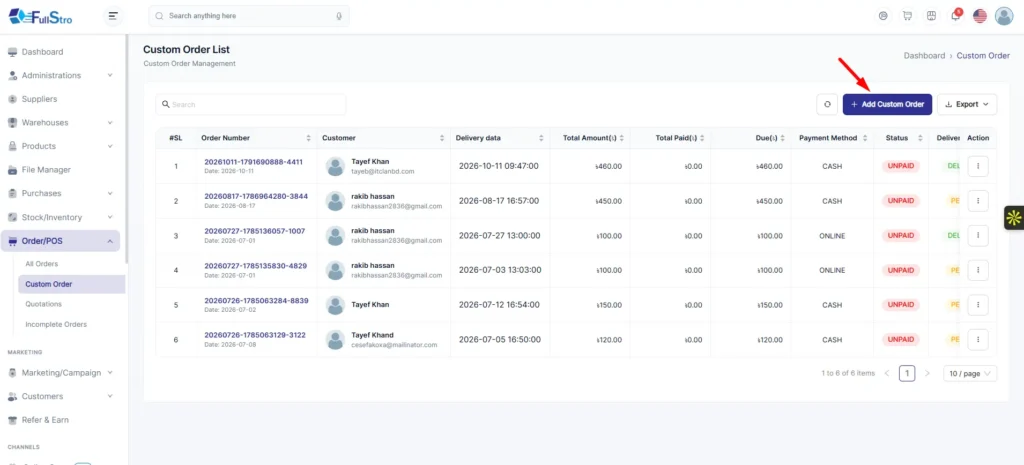
– From the Custom Order List page, click the Add Custom Order button.
3. Add Product Information
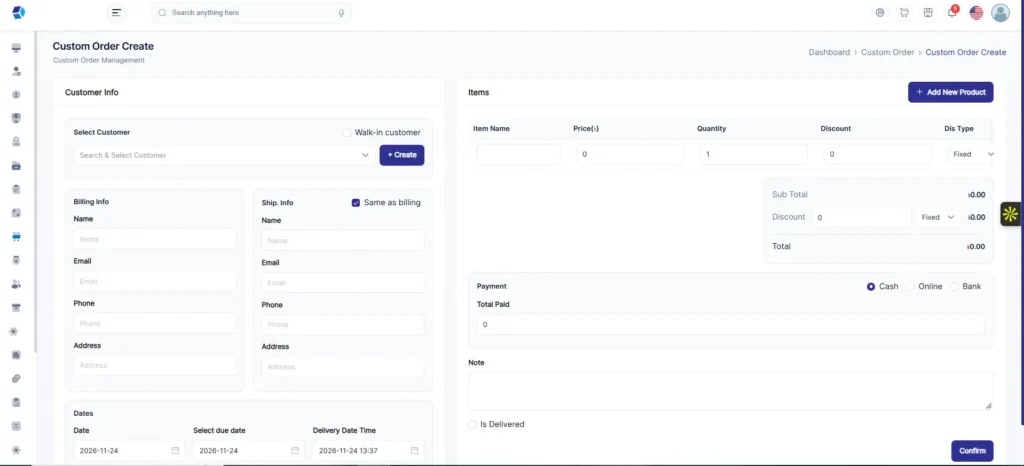
Enter the following details in the right panel:
- Product Title
- Price
- Discount (if applicable)
- Quantity
- To add multiple products, click the Add New Product button.
Enter the following details in the left panel:
- Customer Information
- Warehouse Selection (Optional)
- Delivery Channel (If shipping channel add-ons are enabled)
- Payment Method:
- Add a Manual Discount if needed.
4. Confirm and Generate Invoice
– Once all product and customer details have been added:
- Click the Confirm button.
- A new invoice will be generated automatically.
5. Manage Orders
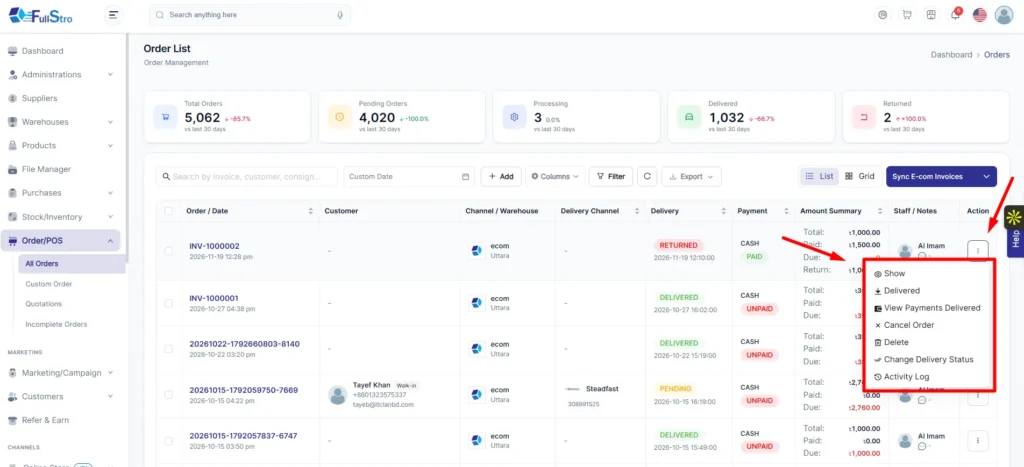
From the Custom Order List page, you can:
- View Order Details.
- View Payment Details.
- Edit existing orders.
- Delete orders.
You can access these options from the Action button next to each order entry.
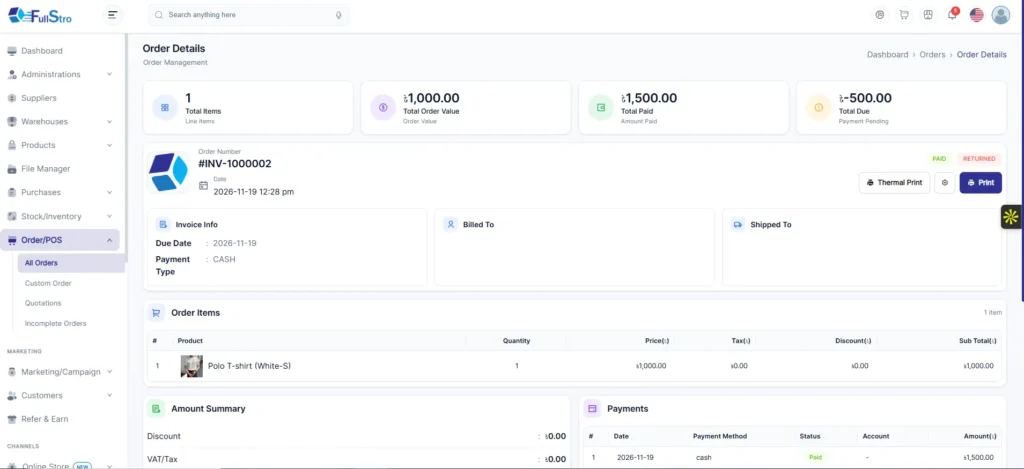
6. What You’ll Find on the Order Details Page
- Product List
- Customer Information
- Discount Details
- Payment Breakdown
- Shipment Information (if applicable)
With this feature, FullStro makes it easy to create orders for custom products, service-based items, or products that are not available in your inventory, helping streamline your order management process.




