“SweetTooth” Storefront Theme Documentation
FullStro offers the SweetTooth storefront theme to store owners at free cost. It’s easy to set up and customize, allowing you to manage your online store efficiently. Follow this simple step-by-step guide.
1. Access Online Store Settings
- Log in to your admin dashboard.
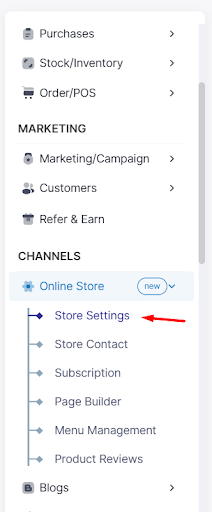
- From the left-hand navigation panel, click Online Store → Store Settings.
- The configuration panel will appear, where you can manage your store’s design and display options.
2. Navigate to Themes
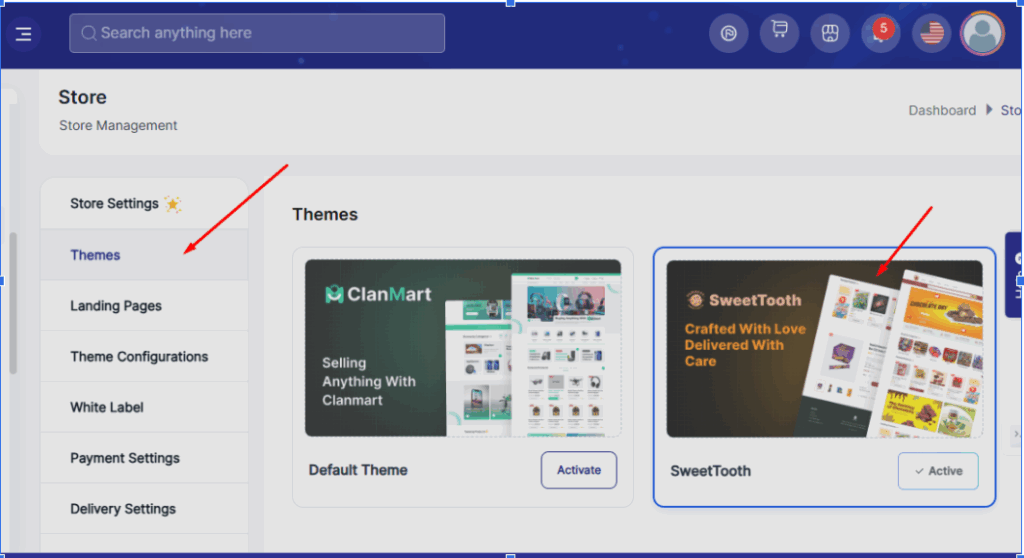
- In the Store Settings panel, click Themes from the inner sidebar menu.
- You will see a list of available themes, including the default theme and any additional installed themes.
- To activate SweetTooth:
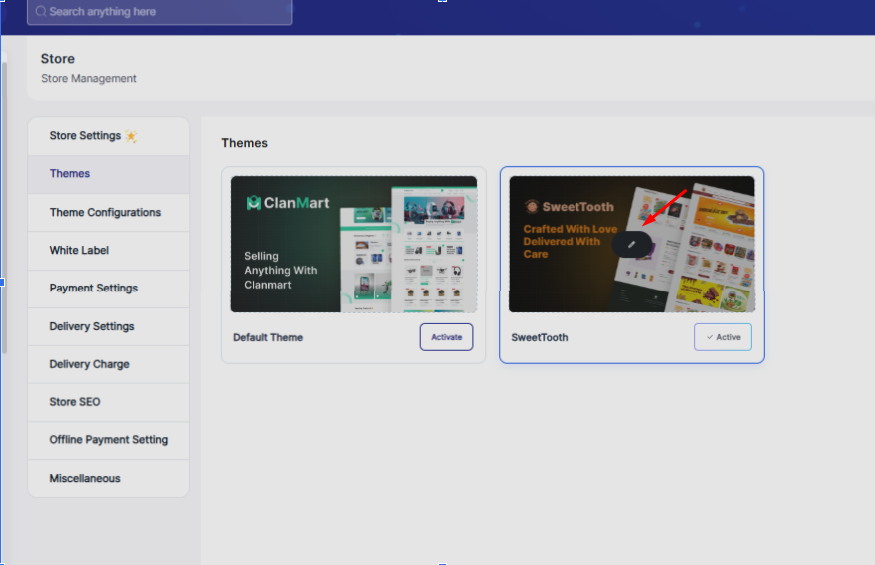
- Hover over the theme card. You will see an Active button (if not already active) and an Edit button.
- Click Active to set SweetTooth as your live theme.
- Click Edit to start customizing your storefront.
3. Understanding the Theme Builder Interface
- After clicking Edit, the SweetTooth theme builder interface will open.
Header Section Overview:
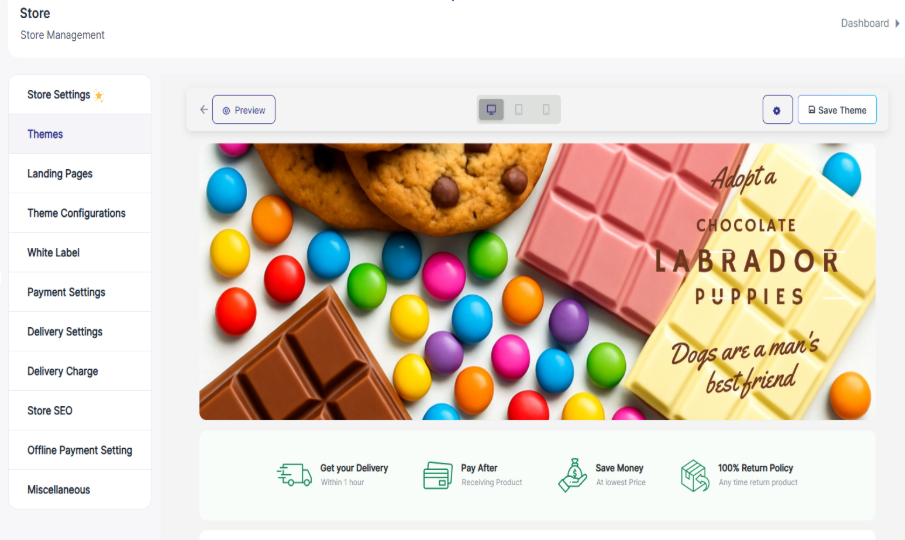
- Left Side: You will find the Back & Preview button. This allows you to return to the previous page or preview your store changes instantly.
- Middle Section: There is a Device View Switcher. You can toggle between desktop, tablet, and mobile views to ensure your storefront looks perfect across all devices.
- Right Side: You will see two important options:
- Settings – For configuring global theme settings.
- Save Theme – To save all your customizations.
4. Live Site Preview & Section Editing
- Below the header controls (Settings), you will see the full live preview of your storefront.
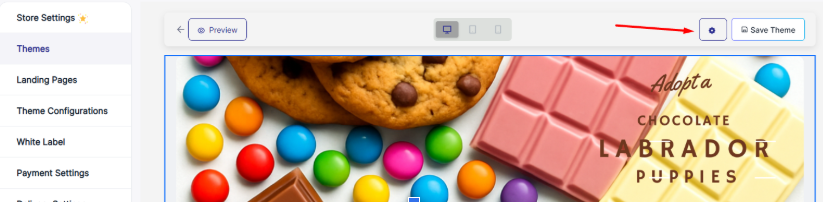
- From here, you can customize key homepage sections such as the Hero Banner, Banner Grid, Categories, Deal of the Week, Featured Products, Product Grid, Collection Banner, and other storefront display elements.
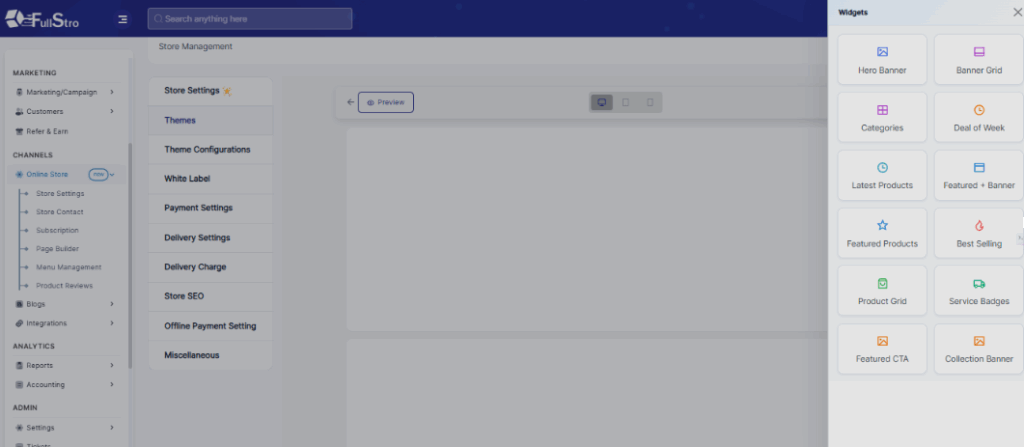
5. Customizing Header Settings
- You can directly click on any section (such as header, banner, product grid, footer, etc.) to edit its content and settings. This allows real-time customization with instant visual feedback.
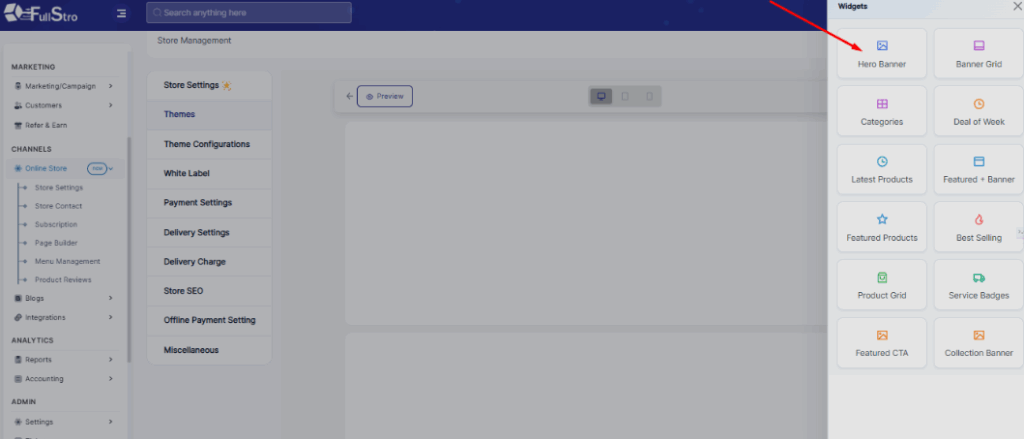
- You can customize widgets based on your store’s requirements.
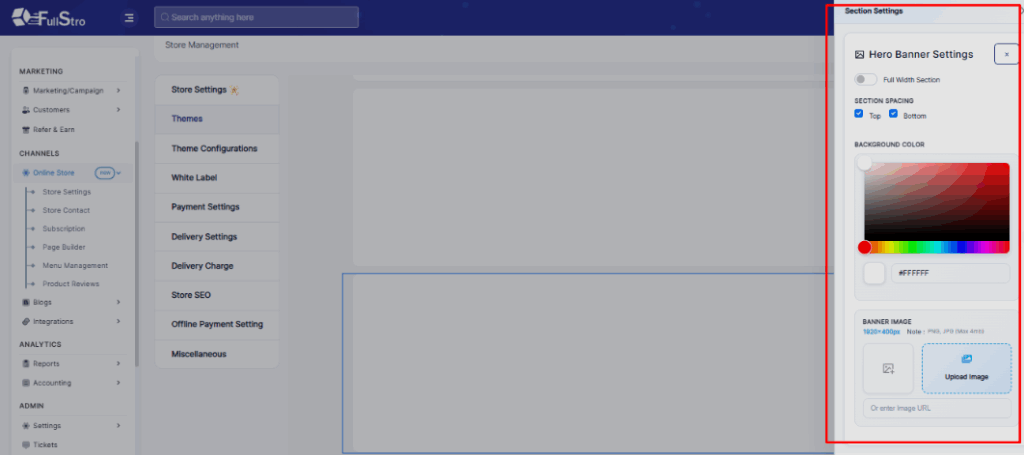
6. Adding Widgets to Sections
- Click the section you want to modify.
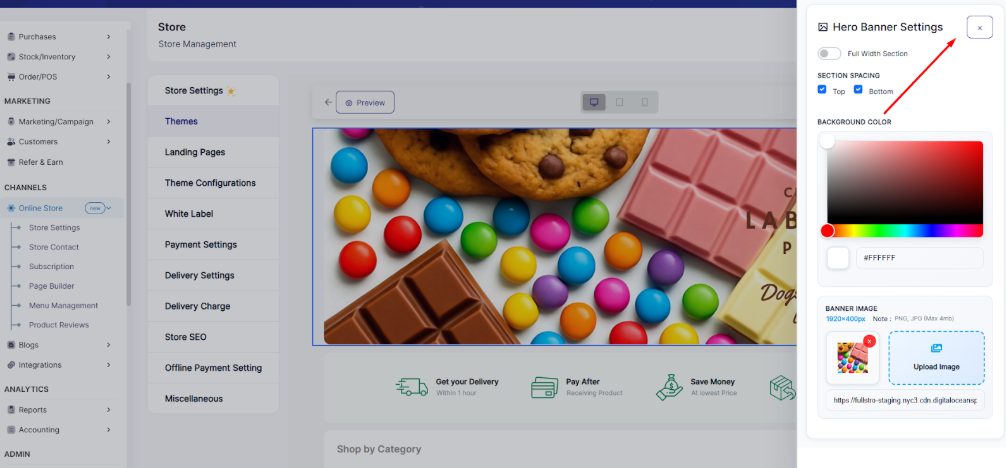
- If the section settings panel is open, press Close.
- The Widget Panel will appear.
- Select and add widgets to enhance the section’s appearance and functionality.
This drag-and-configure system allows you to create fully customized layouts with ease.
7. Saving Your Changes
- After customizing your storefront, click Save or Save Theme at the top-right corner of the builder interface.
- Your changes will be saved and applied to your live store immediately.

Final Note
The SweetTooth theme builder gives you full control over your storefront design without any technical knowledge.
With live previews, responsive device views, and widget-based customization, you can build a visually appealing and high-converting online store quickly and easily.




