“SweetTooth” Storefront Theme Documentation

FullStro offers the SweetTooth storefront theme to store owners at free cost. It’s easy to set up and customize, allowing you to manage your online store efficiently. Follow this simple step-by-step guide.

1. Access Online Store Settings

  • Log in to your admin dashboard.
  • From the left-hand navigation panel, click Online StoreStore Settings.
  • The configuration panel will appear, where you can manage your store’s design and display options.

 2. Navigate to Themes

  • In the Store Settings panel, click Themes from the inner sidebar menu.
  • You will see a list of available themes, including the default theme and any additional installed themes.
  • To activate SweetTooth:
    • Hover over the theme card. You will see an Active button (if not already active) and an Edit button.
    • Click Active to set SweetTooth as your live theme.
    • Click Edit to start customizing your storefront.

    3. Understanding the Theme Builder Interface

    • After clicking Edit, the SweetTooth theme builder interface will open.

    Header Section Overview:

    • Left Side: You will find the Back & Preview button. This allows you to return to the previous page or preview your store changes instantly.
    • Middle Section: There is a Device View Switcher. You can toggle between desktop, tablet, and mobile views to ensure your storefront looks perfect across all devices.
    • Right Side: You will see two important options:
      • Settings – For configuring global theme settings.
      • Save Theme – To save all your customizations.

    4. Live Site Preview & Section Editing

    • Below the header controls (Settings), you will see the full live preview of your storefront.
    • From here, you can customize key homepage sections such as the Hero Banner, Banner Grid, Categories, Deal of the Week, Featured Products, Product Grid, Collection Banner, and other storefront display elements.

    5. Customizing Header Settings

    • You can directly click on any section (such as header, banner, product grid, footer, etc.) to edit its content and settings. This allows real-time customization with instant visual feedback.
    • You can customize widgets based on your store’s requirements.

    6. Adding Widgets to Sections

    • Click the section you want to modify.
    • If the section settings panel is open, press Close.
    • The Widget Panel will appear.
    • Select and add widgets to enhance the section’s appearance and functionality.

    This drag-and-configure system allows you to create fully customized layouts with ease.

    7. Saving Your Changes

    • After customizing your storefront, click Save or Save Theme at the top-right corner of the builder interface.
    • Your changes will be saved and applied to your live store immediately.

    Final Note

    The SweetTooth theme builder gives you full control over your storefront design without any technical knowledge.

    With live previews, responsive device views, and widget-based customization, you can build a visually appealing and high-converting online store quickly and easily.

    FullStro Storefront

    Sell Online Instantly with a Built-in Storefront

    The Storefront feature in FullStro empowers you to launch a fully functional online store directly linked to your FullStro account. No third-party platforms are needed—just choose a template, customize it, and begin selling with real-time inventory and order syncing.


    How to Set Up Your Storefront

    Follow these simple steps to enable and customize your online storefront:


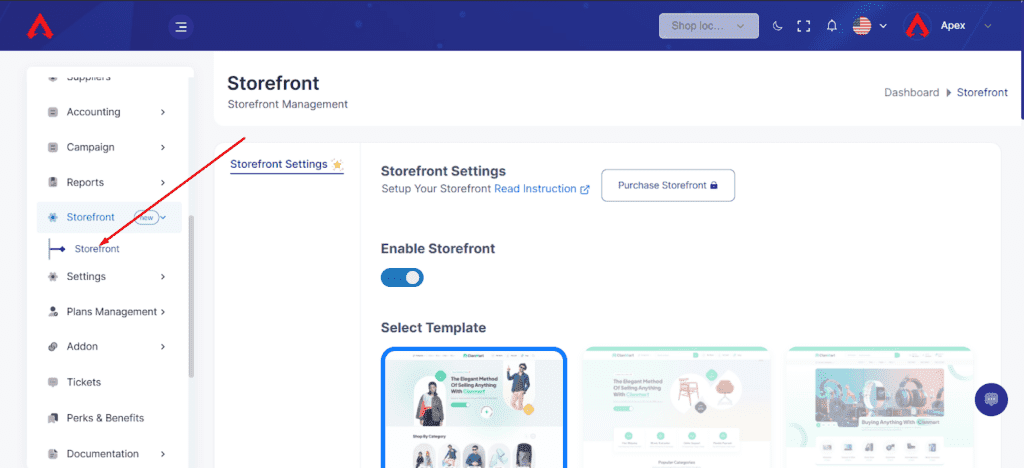
    Step 1: Log in to Your FullStro Account

    • Go to the left sidebar and navigate to:
      Storefront > Storefront
    • You’ll be directed to the Storefront Settings page.
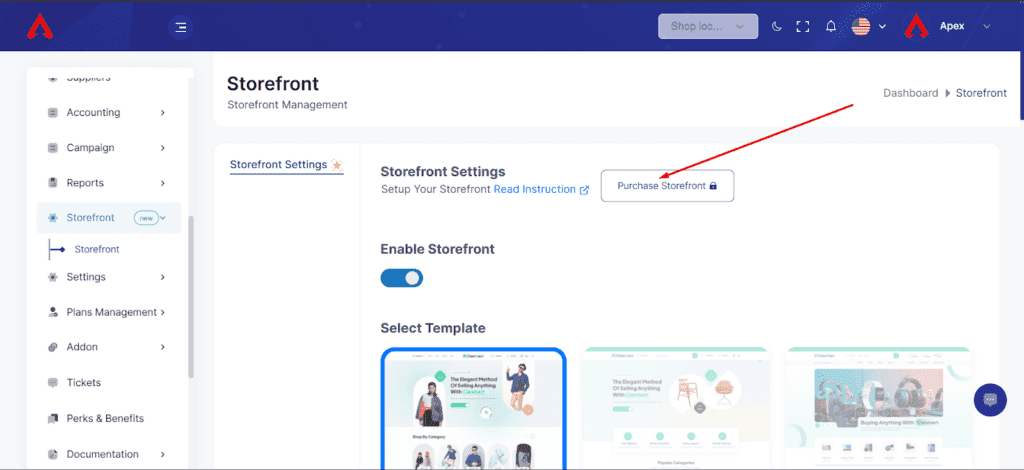
    Step 2: Purchase Storefront Addon

    • Click on the “Purchase Storefront” button.
    • A pop-up will appear prompting you to enter your payment details.
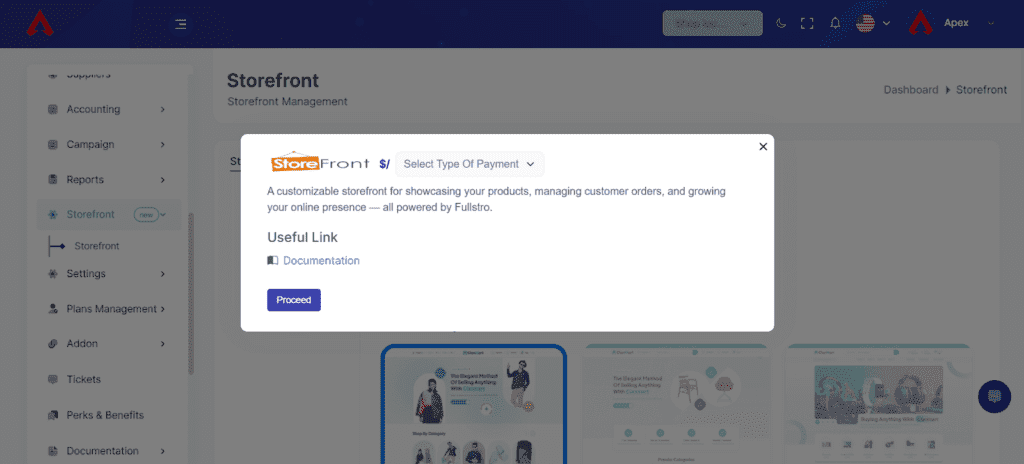
    Step 3: Complete Payment

    • Select your Payment Type (e.g., Card, Bank, Wallet).
    • Click “Proceed” to complete the transaction.
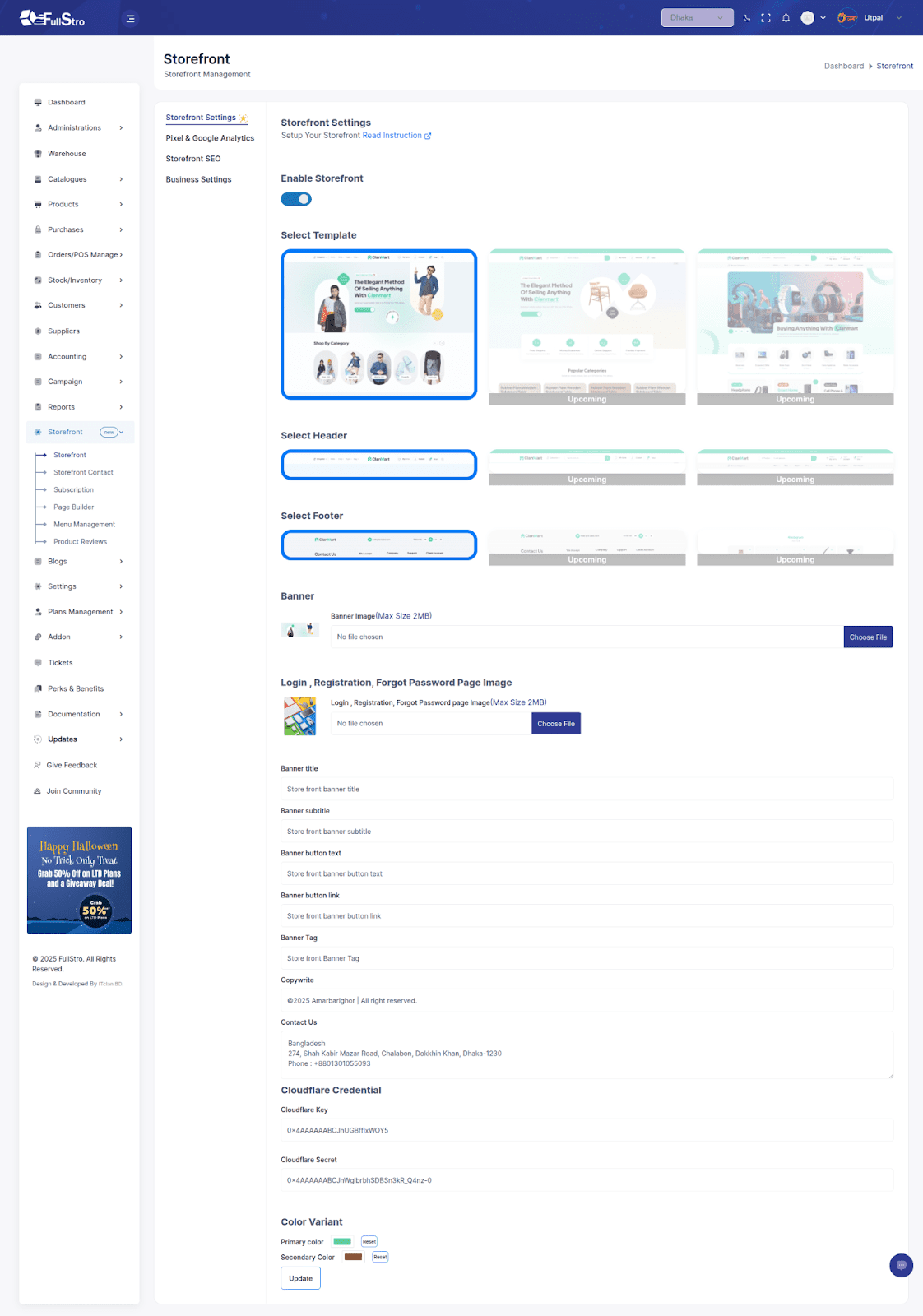
    Step 4: Customize Your Storefront

    Now that your Storefront is active, it’s time to make it truly yours. Bring your brand to life with custom visuals, sleek layouts, and powerful personalization options—all directly from your FullStro dashboard.


    Choose Your Layout

    Start by selecting a modern layout template that suits your brand vibe. Whether you’re going for minimal, bold, or elegant, FullStro has you covered.


    Pick a Color Scheme

    Match your brand identity with a custom color palette. From button colors to backgrounds, every shade matters. Choose what feels like you.


    Add Your Brand Elements

    Upload your Logo and Favicon to build brand recognition. These tiny details pack a punch in making your storefront feel authentic and professional.


    Design Your Homepage Banner

    Create a bold first impression with a dynamic banner image. Add:

    • Banner Title – Capture attention with a headline.
    • Banner Subtitle – Add a short tagline or supporting message.
    • Banner Button Text – Drive action with a CTA.
    • Banner Button Link – Point users to products, categories, or any custom page.
    • Banner Tag – Highlight “New”, “Sale”, “Featured”, or your own tag.

    Customize Other Page Visuals

    Make your Login, Register, and Forgot Password pages stand out with eye-catching page-specific images.


    Contact & Footer Info

    Add your:

    • Contact Information to make support easy.
    • Copyright Text to mark your store’s ownership and professionalism.

    Cloudflare Integration (Advanced Users)

    Enhance your storefront’s speed and security. Enter your:

    • Cloudflare Key
    • Cloudflare Secret

    This ensures your store loads fast and is better protected.


    Publish Your Dream Store

    Once everything looks perfect, hit Save & Publish.
    Your beautifully branded storefront is now live and ready to sell.
    Step 5: Analytics, SEO & Business Settings

    Once your storefront visuals are dialed in, let’s plug in the powerful tools that elevate your store’s performance: analytics, SEO, business identity, and social engagement.


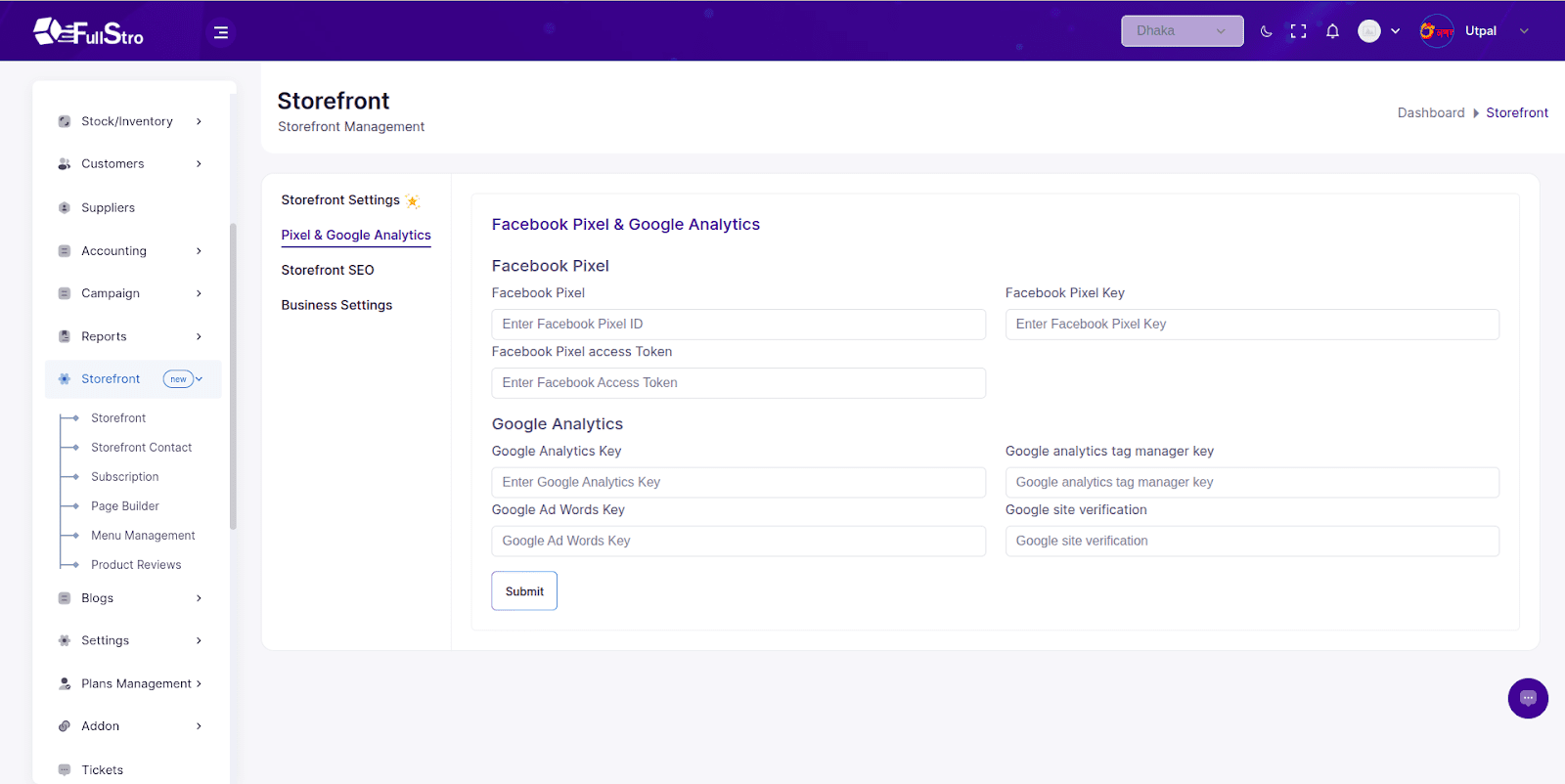
    Facebook Pixel & Google Analytics Integration

    Track conversions, monitor customer behavior, and power your retargeting campaigns with essential tracking tools:

    Go to the left sidebar and navigate to:
    Storefront > Storefront > Pixel & Google Analytics

    Facebook Pixel

    • Facebook Pixel Key – Add your unique pixel ID to track actions and conversions.
    • Facebook Pixel Access Token – Ensure secure and authorized tracking.

    Google Analytics & More

    • Google Analytics Key – Integrate your site with GA for deep performance tracking.
    • Google Analytics Tag Manager Key – For those using Google Tag Manager setups.
    • Google AdWords Key – Track conversions from your Google Ads campaigns.
    • Google Site Verification – Verify your site for indexing and tracking.
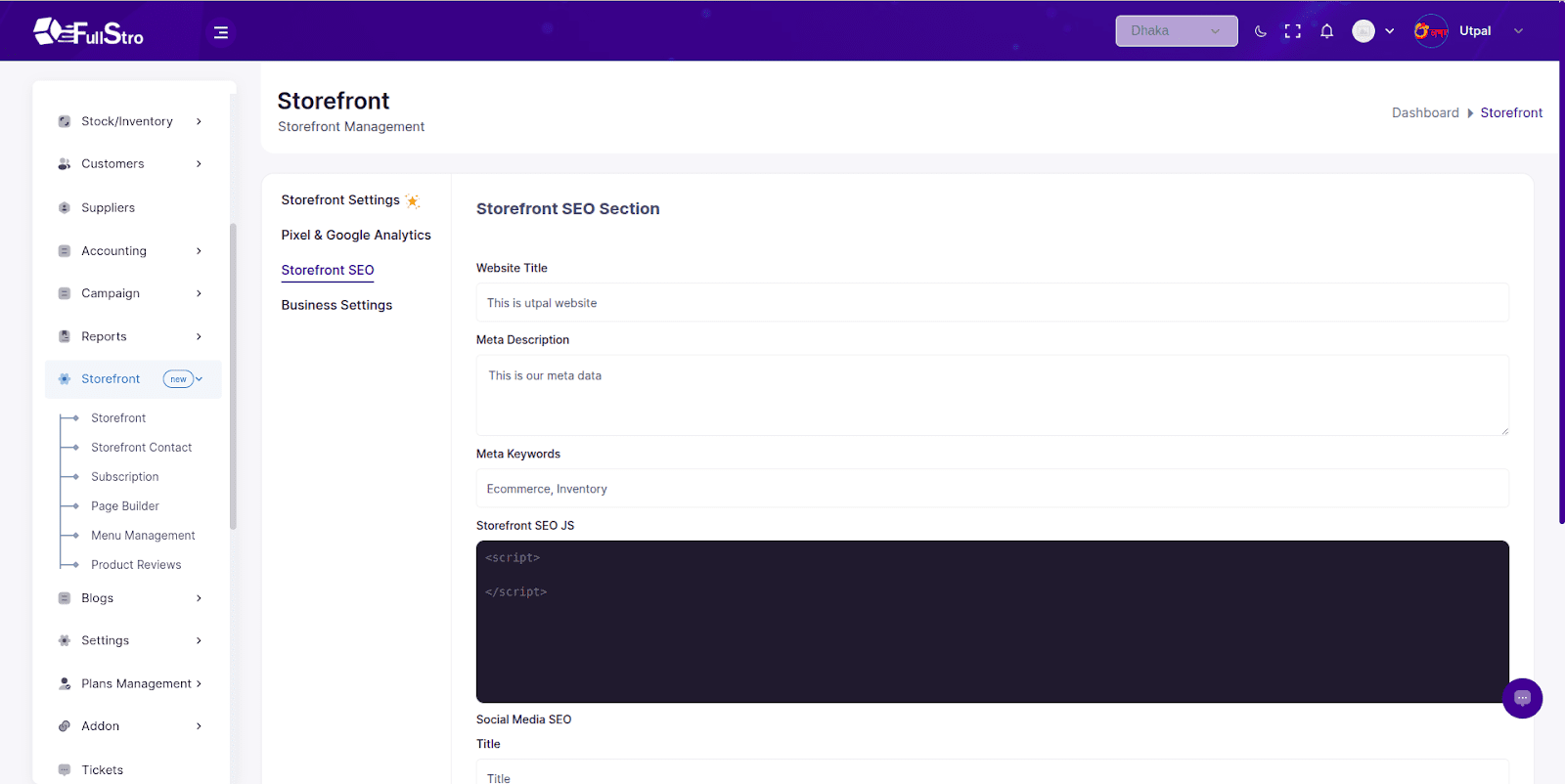
    Storefront SEO Section

    Improve your search engine visibility by customizing metadata and injecting custom scripts.

    Go to the left sidebar and navigate to:
    Storefront > Storefront > Storefront SEO

    SEO Fields

    • Website Title – The main title shown in search engine results.
    • Meta Description – Short summary of your storefront shown in search engines.
    • Meta Keywords – Relevant keywords that describe your business.

    SEO JS Injection

    Add any custom JavaScript for advanced SEO, schema, or third-party tools:

    <script>

    // Add your SEO or tracking scripts here

    </script>

    Social Media SEO

    Help social platforms understand and showcase your storefront better:

    Go to the left sidebar and navigate to:
    Storefront > Storefront > Business Settings

    • Social SEO Title – The headline that appears when links are shared.
    • Image Alt Text – Improve accessibility and image indexing.
    • Creator – Twitter handle or business name.
    • Meta Description – Preview text for social shares.
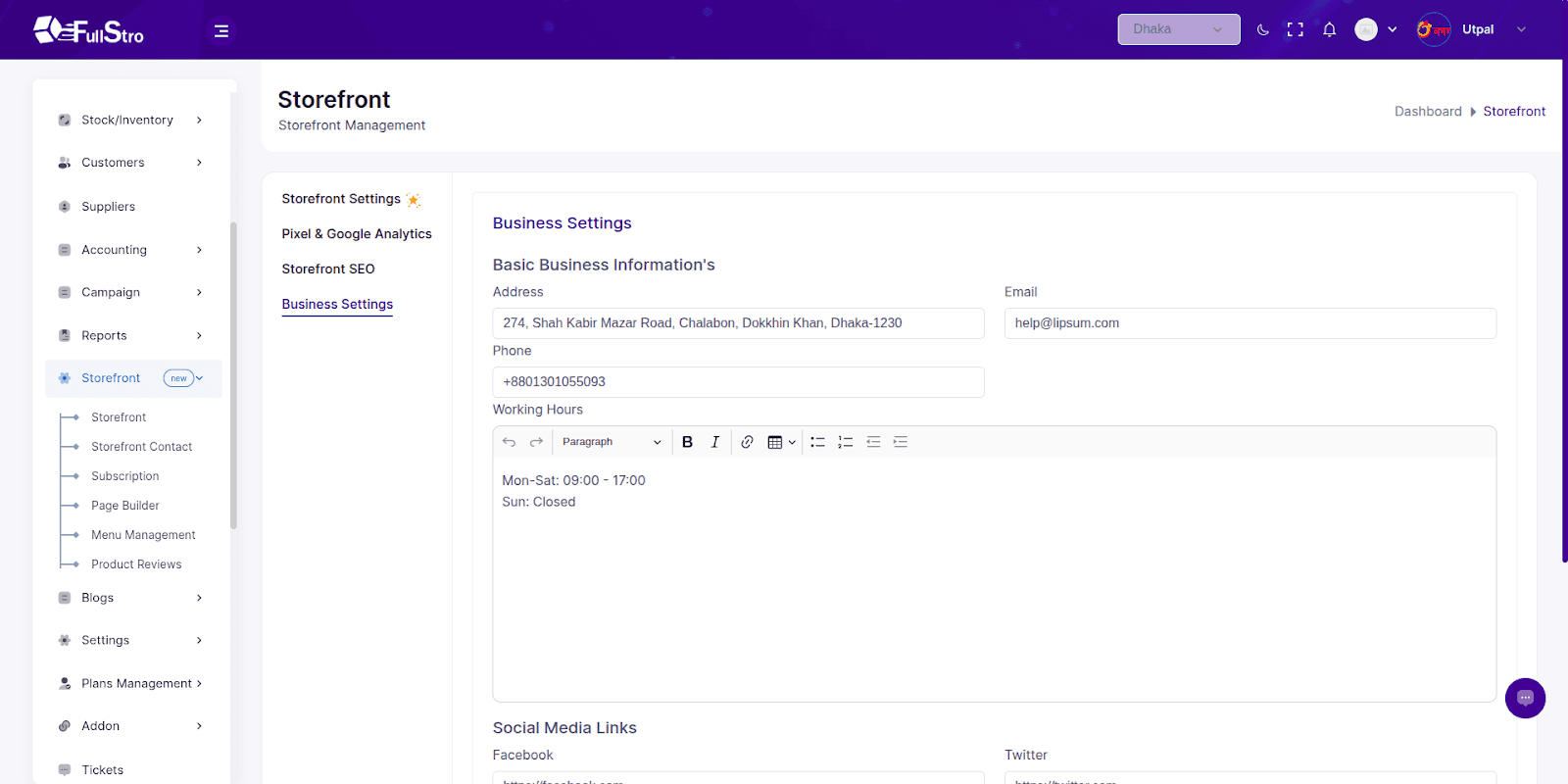
    Business Settings

    Set up the core identity and operational information for your business.

    Basic Info

    • Business Name
    • Address
    • Email
    • Phone Number

    Working Hours

    Set your operating hours to display in footers, contact pages, or widgets.

    Social Media Links

    Connect your storefront with your social world and build a multi-platform presence:

    • Facebook
    • Twitter
    • Instagram
    • LinkedIn
    • Discord
    • Pinterest
    • WhatsApp
    • Google Maps – Share your location for real-world store visibility.
    Page Builder & Menu Builder — Customize Your Storefront Navigation & Content

    Extend your storefront with rich content pages and a fully flexible menu system. Whether it’s an About page, Contact page, Terms, or FAQ — FullStro gives you total control over your online store structure.


    Page Builder — Add & Manage Custom Pages

    Create unique content pages for your storefront without needing any external platform or developer.

    Navigation Path:

    Storefront > Page Builder

    Add a New Page:

    Click the “Add New” button and fill out the following:

    • Title* – Page heading (e.g., “About Us”, “Contact”)
    • Slug* – URL slug (e.g., /about)
    • Content* – Use the built-in editor to add formatted content (text, images, links, etc.)
    • Status – Active or Inactive
    • Visibility Settings:
      • Show in Menu?
      • Show in Footer?
      • Show in Sitemap?

    SEO Settings:

    • Meta Title
    • Meta Description
    • Meta Keywords

    Page List:

    After saving, all pages appear in the list view where you can:

    • Edit – Update the page content, visibility, or SEO.

    Delete – Remove a page entirely from your storefront.

    Menu Builder — Structure Your Navigation

    Create an intuitive menu for your storefront visitors.

    Navigation Path:

    Storefront > Menu Management

    Here, you can:

    • Drag & Drop menu items to reorder them easily
    • Edit Menu Labels – Rename labels for clarity or branding
    • Add Pages to Menu – Include your custom pages or external links
    • Nest Submenus – Create dropdown-style menu structures

    Use this to reflect your brand’s navigation logic: Home, Shop, Contact, About, FAQ, Policies, etc.

    WhatsApp Chat

